PDF Scanner App: Document Scan
- 4.2
- Rating
- 500.00K
- Installs
- Free
- Price
 Analysis by App-foxy
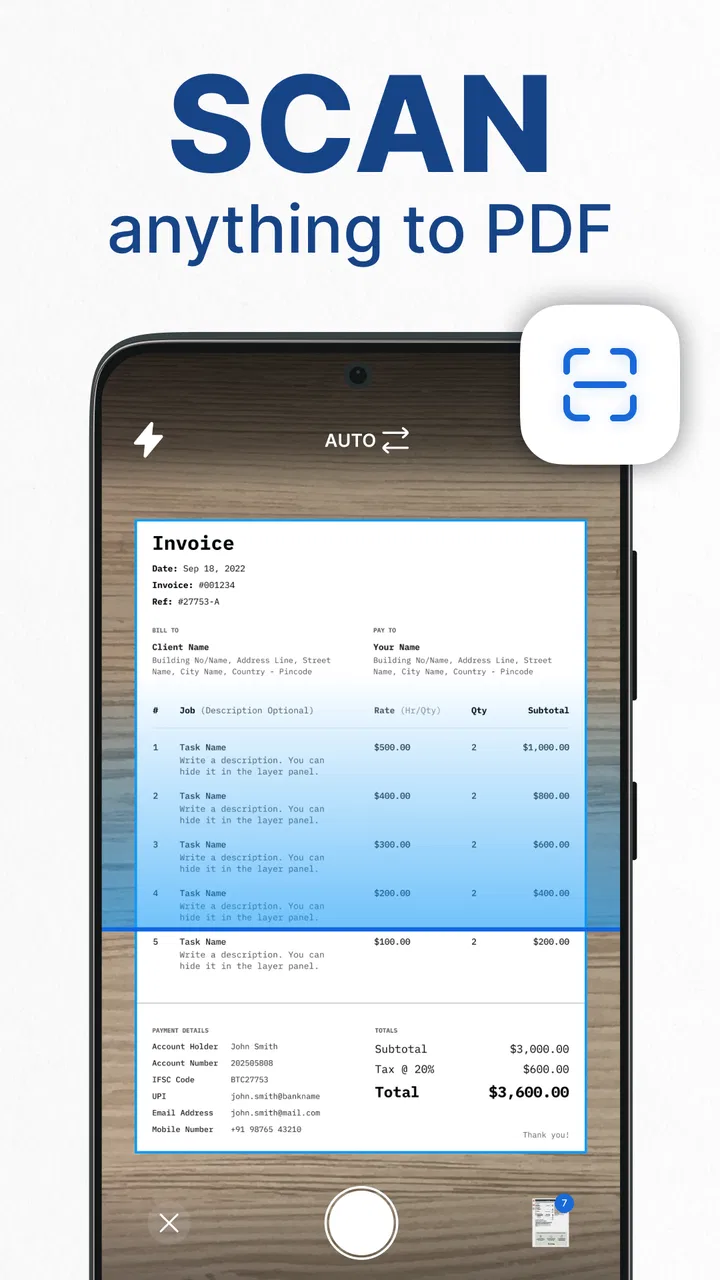
PDF Scanner App: Document Scan is the kind of productivity tool I reach for when a paper document needs to become useful immediately. I tested it with the mindset of someone dealing with receipts, forms, notes, and pages that are awkward to carry around, and I found its appeal easy to understand: the phone becomes a practical document-scanning station rather than just a camera. The app is free to start, aimed at Everyone, and published by SmartSoft Apps.
My overall impression is positive, but quite specific. This is a sensible choice for people who want a straightforward way to turn physical pages into PDF or JPG files and then send them onward. It is less convincing as a complete document-management system for someone who needs advanced editing, collaboration, or a carefully controlled professional archive. Its strongest quality is convenience at the moment a document appears in front of you.
Where the scanner fits into everyday work
The most realistic use case is not a dramatic one. Imagine receiving a paper form at school, work, a clinic, or a rental office and needing to return it digitally before you get home. With this app, I can capture the pages, create a more practical digital copy, and share it as a PDF or JPG instead of taking several separate photos. That small change matters because a document file is usually easier for another person to open, print, or store than a loose set of camera images.
You May Also Like

 Blood Strike: 2.5 Anniversary
Blood Strike’s Loadouts Turn Every Drop Into a Tactical Gamble
A close look at Blood Strike’s custom loadouts: how fast access to signature weapons reshapes its battle royale rhythm, rewards preparation, and narrows the gap between fights.

 Pandora - Music & Podcasts
Pandora’s Music Is Easy to Start, but Harder to Recover
Pandora’s strength is its low-effort path from a seed to a station. Its weak spot is how much confidence it asks you to place in connection, setup, and quiet recovery.

 8 Ball Pool
 Is Built on Rivalries, Rematches, and Routine
A close look at the rivalries, rematches, shared routines, and unanswered safety questions that turn a quick pool match into a persistent mobile community.

 Samsung Music
’s Quiet Strength Is Playing What You Already Own
Its reach comes less from spectacle than from dependable access to a personal library. That simplicity is both the app’s strongest retention engine and its ceiling.

 AccuWeather: Weather Radar
AccuWeather Review: A Quick, Clear Forecast for Everyday Decisions
For everyday plans, the best forecast is the one you can understand quickly. AccuWeather makes rain timing, radar, and local conditions easy to act on, with a few trade-offs.

 Hill Climb Racing
Why Hill Climb Racing Still Turns Crashes Into One More Run
A tiny car, a bumpy hill and one more upgrade: Hill Climb Racing keeps resurfacing because its simple chaos makes every near-miss feel personal.
More From Our News Desk



I also see value in short trips. A traveler may need to keep a copy of an identification-related document, a booking paper, or a receipt without carrying the original everywhere. A student can scan handwritten notes before leaving a library. A freelancer can digitize a signed page after a meeting. In each case, the benefit comes from reducing the number of steps between paper and a shareable file.
The app belongs naturally in the mobile productivity category because it solves a narrow task well: capturing documents and converting them into common file formats. It is not trying to replace a full office suite. That focus is helpful, especially for someone who does not want to learn a large workspace just to scan a few pages.
SmartSoft Apps has kept the basic idea accessible. The application was released on April 10, 2022, and its current version is 2.05. It runs on Android 7.0 or later, which makes it available to people using older phones as well as newer devices. That broader compatibility is useful for families, students, and small businesses that do not refresh hardware frequently.
Connectivity changes the useful moments
The scanning action itself feels like a phone-based task, but the complete workflow often reaches beyond the camera. The moment I want to send a finished PDF or JPG, connectivity becomes part of the experience. A scan can be perfectly captured and still be inconvenient if I am somewhere with a weak connection and need to deliver it immediately.
That distinction is important when deciding whether this app suits you. If your usual routine is scanning at home, in an office, or in a place with dependable internet access, the sharing step should fit naturally into the process. If you regularly work in basements, rural areas, transit stations, or crowded venues, I would plan the workflow around the connection rather than assuming that every part of delivery will be instant.
I would also avoid treating the app as a substitute for a secure document portal. Scanning and sharing are not the same as managing access, tracking revisions, or organizing a team’s files. For a single page sent to one person, the simple route is attractive. For sensitive paperwork moving through several people, the destination and the connection deserve just as much attention as the scan itself.
How I use it in mobile situations
Phone scanning works best when I slow down for a few seconds before taking the image. I place the page on a surface with a clear contrast between the paper and the background, remove anything covering the corners, and hold the phone as level as possible. These small habits are more valuable than repeatedly trying to rescue a poor capture afterward.
For a multi-page document, I would scan in a consistent order and pause briefly between pages. That makes it easier to notice a missing page before the file is shared. It is an especially useful habit when the document contains a form with a front and back, or when several pages look almost identical. A fast workflow is only genuinely fast if it avoids a second trip back to the original paperwork.
There is also a practical trade-off between PDF and JPG. I would choose PDF when the recipient needs one document that can be read from beginning to end. JPG makes more sense when I need to send an individual page as an image or place it into a visual conversation. Picking the format before sharing prevents the common problem of sending several image attachments when one organized document would have been clearer.
One non-obvious advantage of scanning on the spot is that it can reduce the time a physical document remains exposed. Instead of carrying a signed form around until later, I can create a digital copy while the paper is available and then return the original. That is useful for administrative errands, but I would still check the resulting file before leaving, particularly if the document is important or difficult to replace.
What happens when the workflow goes wrong
No phone scanner removes the risks of ordinary mobile photography. Glare, shadows, curled paper, motion, and a partially hidden edge can all reduce the usefulness of a scan. The app makes the conversion convenient, but it cannot change a page that was captured badly. My advice is to inspect every page at a readable size before sending it, rather than trusting the first preview.
Connectivity introduces another failure point. If sharing does not complete, I would first keep the scan available on the phone, check that the file is still present, and retry from a more stable connection. I would not repeatedly recreate the document unless the original capture is actually defective. Re-scanning wastes time and can produce slightly different results, especially when pages have been moved or a signature is involved.
A useful recovery routine is to separate capture from delivery. Scan the complete document first, review the page order, select the appropriate format, and only then begin the sharing step. This makes it easier to tell whether a problem comes from the image itself or from the network-dependent handoff. It also gives me a clearer opportunity to notice a blank page, a cut-off margin, or an unreadable section.
For urgent paperwork, I would prepare a backup plan before starting. That might mean keeping the original paper until the recipient confirms receipt, or using the phone’s ordinary camera as a temporary fallback if the scanning workflow is interrupted. I would not call this a criticism unique to the app; it is a sensible precaution whenever a phone is being used as the only bridge between a physical document and a digital deadline.
The app is more suitable for quick document conversion than for repairing every kind of capture. If your work regularly involves faded originals, tiny print, complex diagrams, or strict archival standards, a dedicated scanner or a more advanced document suite may be the better tool. In those situations, convenience is valuable, but accuracy and repeatability matter more.
Using it without wasting data or attention
Scanning several pages can create larger files than expected, especially when the pages contain detailed images or when I keep multiple versions after retaking them. I prefer to review the document before sharing so I do not send unnecessary duplicates. This is both a data-conscious habit and a practical one: fewer files are easier to identify later.
I also try to avoid sending a scan immediately after every individual page. Capturing the whole set first usually creates a cleaner package and reduces repeated network activity. That approach is particularly helpful when I am working on a mobile connection or when the recipient expects one complete PDF rather than a stream of separate images.
There is a privacy angle as well. A scanned document may contain addresses, signatures, account details, or personal identifiers. I would check the page edges for unrelated information before sharing and choose the recipient carefully. The app makes the document portable, which is useful, but portability also means a careless tap can move sensitive material farther than intended.
Because the app is free, it is easy to try without committing money at the start. However, the application includes in-app purchases ranging from $4.99 to $45.99 per item. I would pay attention to the purchase screen and decide whether the free experience already covers my needs before spending anything. For occasional scanning, the cost question may be simple; for frequent use, I would compare the paid path with other scanner apps and office tools I already use.
This is also where connectivity and data awareness meet. A person who scans only a page or two in a reliable office environment may never notice the issue. Someone scanning a long packet while traveling should think about when to share, how many versions to retain, and whether the final recipient truly needs every page. The app can support a quick workflow, but good file discipline still belongs to the user.
Who will appreciate it, and who should look elsewhere
I would recommend PDF Scanner App: Document Scan to students, renters, freelancers, parents, and small-business users who need occasional digital copies of paper documents. It is especially appealing when the priority is speed and simplicity rather than a large collection of professional tools. Someone who wants to scan a form, choose a useful format, and send it from a phone will understand the value quickly.
The app also makes sense for people with older Android devices because the minimum operating system is Android 7.0. That does not guarantee identical camera results across every phone, of course, but it does make the software relevant to users who are not on the latest hardware. The Everyone content rating also fits its general-purpose role in households and ordinary workplaces.
I would be more cautious about recommending it to a team that needs shared folders, detailed audit trails, advanced text recognition, or formal document retention. Those users may be better served by an office platform or a specialized scanner service that is built around collaboration and administration. Likewise, if your main need is editing the contents of a PDF rather than creating a clean digital copy, a dedicated PDF editor will probably be a stronger match.
Compared with using the regular camera app, this scanner is more focused on the document workflow. The camera is perfectly adequate for a quick visual reference, but it can leave you with scattered photos and extra work when a recipient wants one organized file. Compared with a full scanner suite, this app is easier to approach but may feel limited to users who expect extensive controls, storage organization, or business-oriented processing.
That middle position is the key to understanding it. I would not install it expecting a complete paperless office. I would install it because a phone is often the device already in my hand when a document needs to become a PDF or JPG. The narrower purpose is also what keeps the learning curve manageable.
What the user response suggests
The app has an average rating of 4.2 from around 3.3 thousand ratings, with over 500 thousand installs. Those figures suggest that it has found a substantial audience for its basic scanning purpose, while the rating also leaves room for the normal frustrations that come with camera quality, file handling, and individual expectations. I read that as a reason to approach it realistically rather than expecting every phone and every document to behave the same way.
In my experience, the most important test is not whether the first scan looks impressive. It is whether the complete sequence feels dependable: capture the pages, check them, create the right file type, and share without confusion. The app is at its best when that sequence stays short and the document is ordinary enough for a phone camera to handle well.
I would give myself a short trial with the kinds of pages I actually deal with. A clean receipt, a multipage form, and a handwritten note reveal more than a generic demonstration. I would check readability at normal zoom, confirm that the pages are in order, and see whether the sharing step fits my usual connection. This trial also helps answer whether the available free experience is enough before considering an in-app purchase.
My connectivity verdict
The best way to use this app is to treat scanning and sharing as two connected but separate steps. Capture carefully, review the result, and then choose the right moment and connection to send it. That simple approach reduces the chance of losing time to a weak signal, an incomplete file, or a page that was never readable in the first place.
PDF Scanner App: Document Scan is a practical productivity app with a clear role. I like it for everyday paperwork, quick digital copies, and situations where carrying a separate scanner would be unreasonable. I would not choose it as my only solution for demanding archival work, complex PDF editing, or team document management.
For the right user, its value is not in adding elaborate features to a simple task. It is in making the paper-to-phone transition less awkward, then giving me a familiar way to share the result. If that is the problem you face, this free app from SmartSoft Apps is worth trying. Just keep the network-dependent part of the workflow in mind, review every important page before sending it, and judge it by the documents you genuinely need to handle.
FAQs for PDF Scanner App: Document Scan
01What is PDF Scanner App: Document Scan used for?
PDF Scanner App: Document Scan is designed to turn your phone or tablet into a portable document scanner. After capturing a page with the camera, the app can detect its edges, improve readability, adjust contrast, and save the result as a PDF or image. It is useful for receipts, forms, notes, contracts, schoolwork, and other paper documents that you want to store or share digitally.
02Does PDF Scanner App: Document Scan produce clear and accurate scans?
In our testing, scan quality depends largely on lighting, camera focus, and how flat the document is placed. The automatic edge detection and image enhancement generally make ordinary pages easier to read, especially when photographed on a contrasting surface. However, users should review every page before exporting, because shadows, folded corners, angled shots, or small text may still require manual cropping or additional adjustments.
03Can I combine several pages into one PDF document?
Yes, the app is intended for multi-page scanning, allowing users to capture several pages and organize them into a single document before saving or sharing it. This is particularly convenient for applications, invoices, study materials, and signed paperwork. Before exporting, check the page order, rotation, and crop boundaries, since correcting these details afterward may be less convenient than reviewing the document first.
04Can scanned documents be shared or exported to other apps?
PDF Scanner App: Document Scan normally provides export and sharing options so scanned files can be sent through email, messaging services, cloud storage, or other compatible applications installed on the device. The exact options may vary between Android and iOS and can also depend on the file format selected. Users should confirm that the exported PDF opens correctly before deleting the original scan.
05Is PDF Scanner App: Document Scan free, and are there privacy considerations?
The app may be available to download at no initial cost, but some features can be restricted by advertisements, usage limits, or optional in-app purchases, depending on the current version and platform. Because scanned files may contain personal, financial, or confidential information, review the app’s privacy policy and permission requests carefully. Avoid scanning sensitive documents unless you understand how files are stored and processed.
Pros
- Quickly scans documents
- receipts
- notes
- and business cards.
- Automatic edge detection helps create clean
- well-framed scans.
- Supports multi-page documents in a single PDF file.
- Image filters improve readability in uneven lighting.
- Useful sharing options make sending scans straightforward.
Cons
- Some advanced tools may require a paid subscription.
- OCR accuracy can vary with handwriting or low-quality images.
- Large multi-page scans may use considerable device storage.
- Scanning quality depends heavily on camera focus and lighting.
- Ads may interrupt the experience in the free version.

PDF Scanner App: Document Scan
Gallery